Hi, everyone!
This time, we would like to introduce D3Worker's DocuSign SERVICE.
What is D3Worker's DocuSign SERVICE?
It is a SERIVCE that cooperates with DocuSign's electronic signature service "DocuSign".
* If this SERVICE doesn't exist in your current D3Worker tenant, please inquire of OPRO's support team.
SERVICE Settings
Fill out each item in the SERVICE settings.
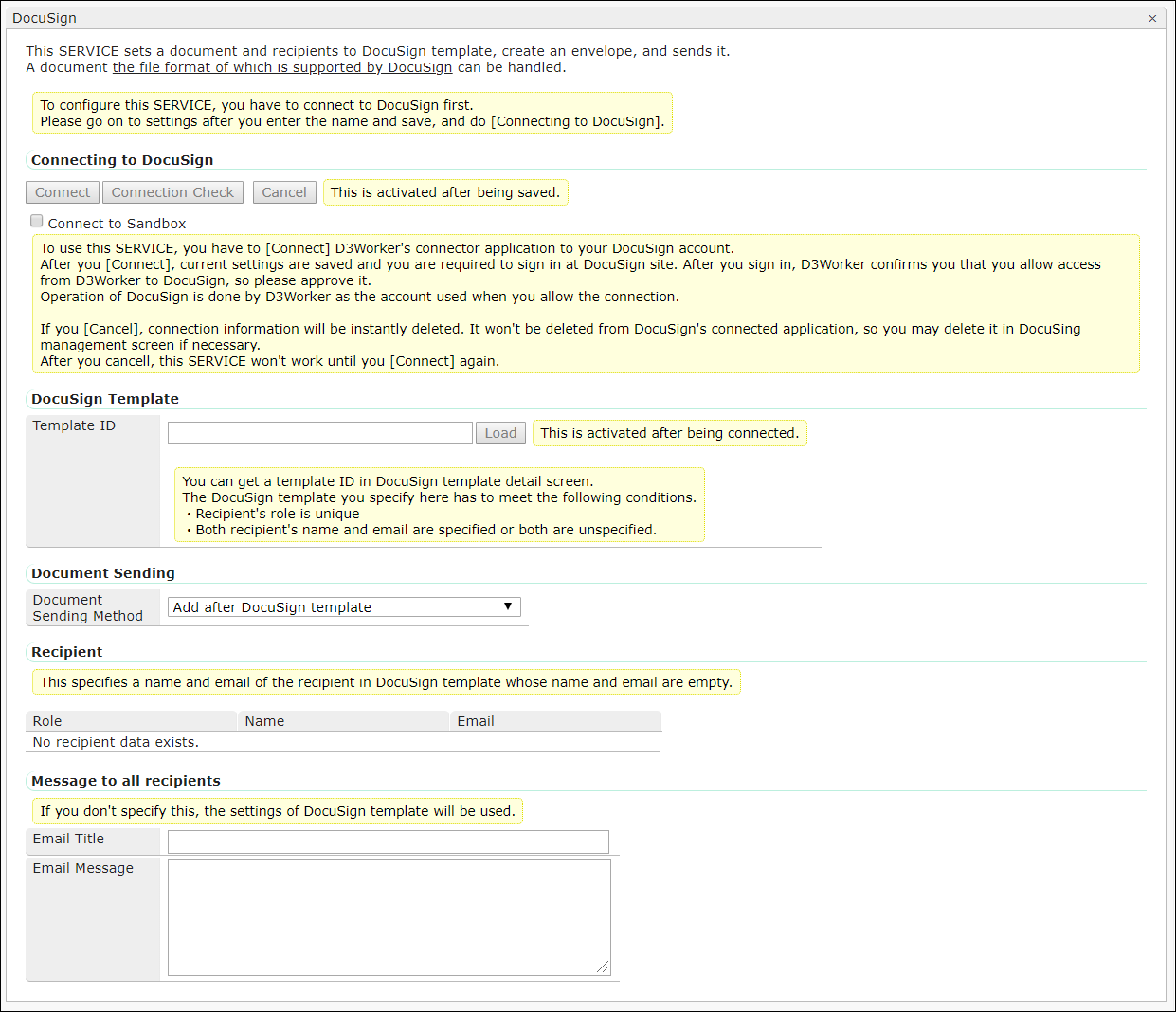
1. Connecting to DocuSign
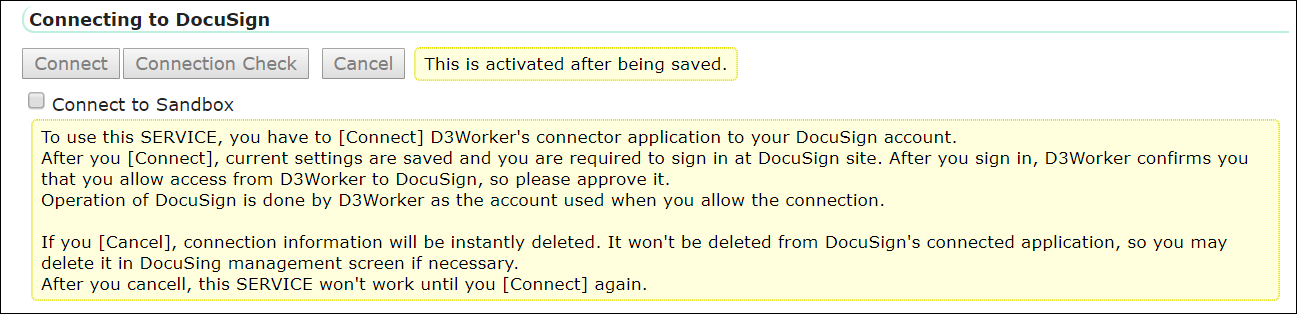
You try connection to DocuSign.
Save the SERVICE after you name it.
Then click [Connect] button to connect to DocuSign.
*If you use a Sandbox environment, check [Connect to Sandbox].
2.DocuSign Template
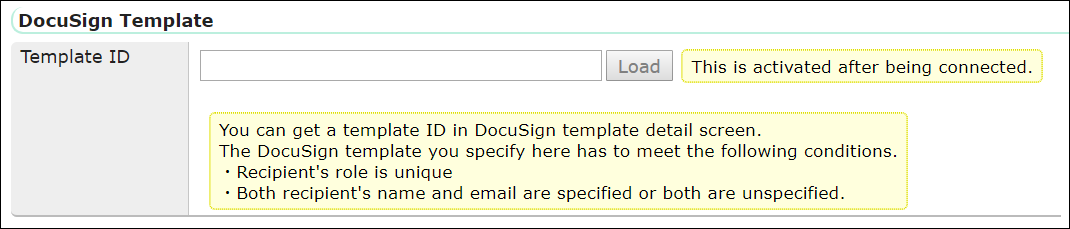
After you confirm connection in 1, enter the template ID (*) and click [Load] button.
* What is a template ID?
You can use a template already prepared in DocuSign.
It is explained below how to get it.
How to get a template ID
1. Log in to DocuSign.
* If you use a Sandbox environment, log in to Sandbox.
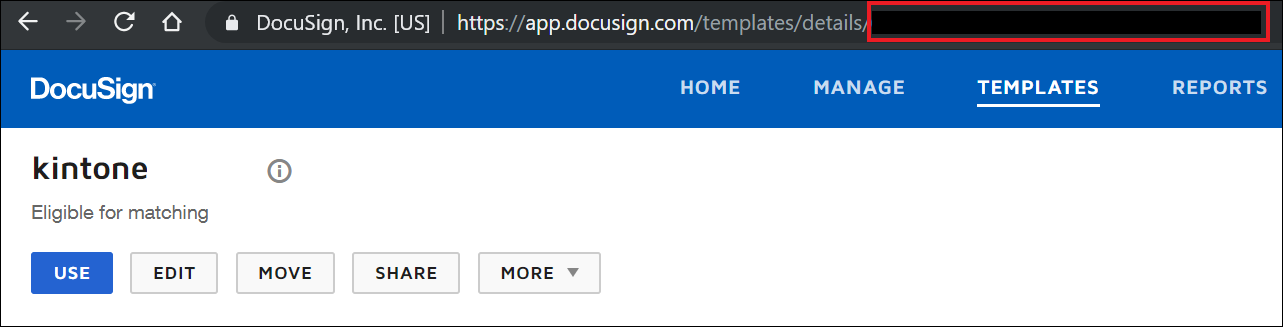
2. Select a template you want to use.
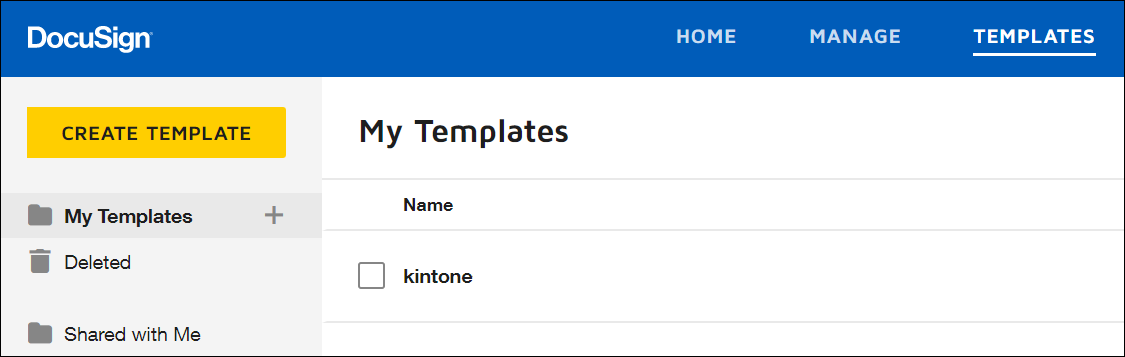
3. The part of the URL after "~/templates/details/" is the template ID.
3. Document Sending

Select the method of sending the template.
| Name | Description |
| Add after DocuSign template | Both DocuSign template and the document OPROARTS generates are used. The document OPROARTS generates is sent after DocuSign template. |
| Insert before DocuSign template | Both DocuSign template and the document OPROARTS generated are used. The document OPROARTS generates is sent before DocuSign template. |
| Replace DocuSign template with the document | The document OPROARTS generates is used. |
| Don't send the document | The document OPROARTS generates isn't used. |
4. Recipient

You can specify the roles, names and emails of recipients.
5. Message to all recipients
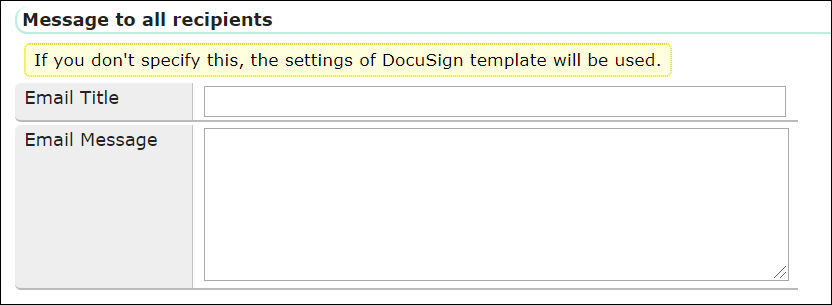
You can specify the message to recipients here.
By using parameters, you can dynamically change the content of the message.
6. Value of the fields
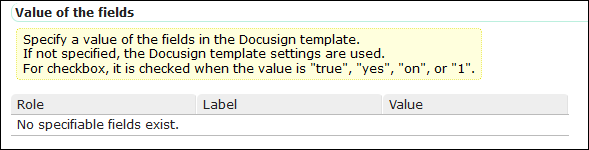
If there are some fields (checkbox, text, drop-down list, radio button) on the loaded DocuSign's template, you can set default values for them.
We hope you also use OPROARTS when you use DocuSign.
Thank you for reading this article!